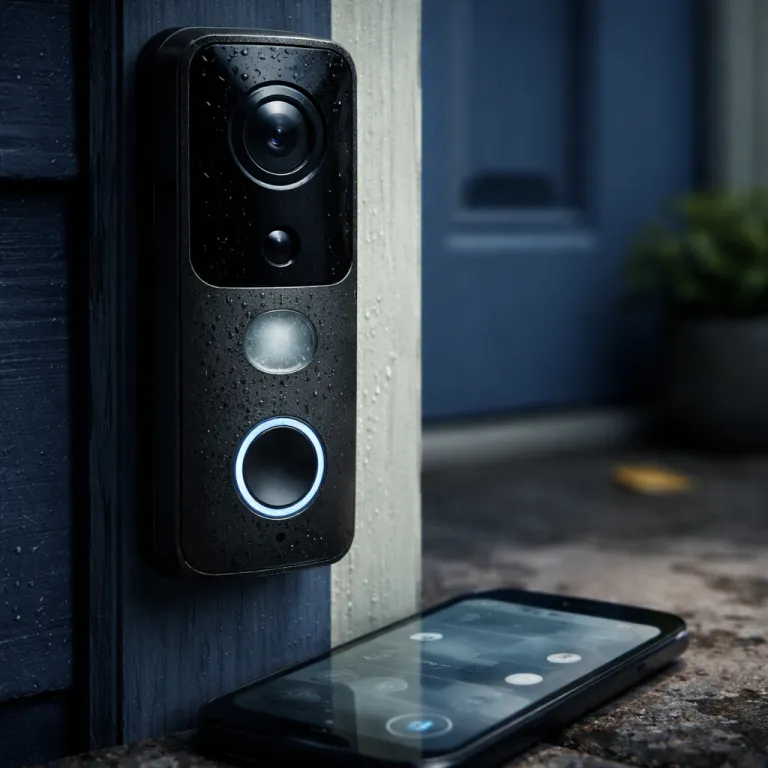
Why your new video doorbell will not work well on default
Most smart doorbells ship with motion detection set far too high. The camera will eagerly detect motion from every car, cat, and branch, then flood you with notifications until you silently mute them. Within days the video doorbell feels like a noisy toy instead of a serious security device.
Good doorbell motion detection settings start with understanding what the device actually sees, because the camera view is usually wider and taller than your porch and includes street traffic, neighbours’ driveways, and swaying trees. Each detection zone that the app draws over this wide camera view becomes a promise that the camera will start recording and send notifications whenever it can detect motion inside that area. If you do not deliberately adjust each setting, the default motion settings treat every tiny motion event as equally urgent, which is the fastest way to miss the one recording that really matters.
Think of your device settings as a security funnel that narrows chaos into useful motion events. At the top you have raw motion detection from the PIR sensor and the image based detection algorithms that notice pixel changes across the frame. Below that you have activity zones, motion zones, and privacy zones that carve the scene into the area you care about and the areas you never want the doorbell camera to watch. At the bottom you have notifications rules that decide which motion settings will ping your phone live and which motion events quietly stay in recording history for later review.
The 15 minute tuning routine for smarter motion alerts
Set a timer for fifteen minutes and stay at your front door with the app open. You will walk through each setting step by step, then test how the doorbell and camera detect motion in real time. This quick routine reshapes chaotic motion detection into a calm, predictable flow of motion events and recordings.
First open the app, tap device or a similar menu, then enter the device settings for your video doorbell and locate the motion settings section. On Ring this means tapping Settings then Motion Settings, while on Nest you tap Settings then Events and select motion; on Eufy you usually tap device, tap motion, then adjust motion sensitivity and activity zones. In every brand you should see tools for drawing at least one detection zone, sometimes called motion zones or activity zones, and you should also see options for privacy zones that block recording in sensitive areas like a neighbour’s window.
Start by drawing a single motion zone that hugs your porch floor and the first metre or two of path, then tap save before you leave the screen. Keep the detection zone away from the street, pavements, and tall plants, because those areas generate endless motion events that add no security value. Once the main area is set, use the motion sensitivity slider to reduce how easily the PIR sensor and camera will detect motion, then walk through the zone yourself to confirm the camera tap on motion still triggers a video recording and notifications.
Next, enable any AI based filters that your device offers for motion detection. On Ring and Nest you can usually select people only detection so the camera will ignore most pets and passing cars while still recording human motion events in your chosen area. If your model supports package detection, turn motion alerts for packages on but keep person alerts as your primary live notifications, because package only filters sometimes miss a thief who grabs a parcel without triggering a separate package event.
Finally, set quiet hours or a schedule so that non urgent motion events do not wake you at night. In most apps you can settings tap into notifications, then tap motion or similar and choose which motion events will send push alerts and which will only create a video recording. Use this to let the camera detect motion and record all night while only urgent events, such as a person lingering at the door, trigger a live alert on your phone.
For a deeper look at how a moving sensor camera and PIR sensor work together inside a smart doorbell, you can read this detailed guide on a moving sensor camera for smart doorbell security. Understanding how the PIR sensor and image based detection interact will help you adjust motion sensitivity and motion zones more confidently. That knowledge makes every later tweak to your doorbell motion detection settings faster and more accurate.
Ring, Nest, and Eufy: what to change first on each app
Ring, Nest, and Eufy all offer strong motion detection tools, but their default settings are tuned for marketing demos, not real porches. On Ring, the camera view often includes the street by default, so the camera will detect motion from every passing vehicle unless you redraw the motion zones. On Nest and Eufy, the default motion sensitivity is usually set high enough that shadows and sunset glare can trigger motion events even when nobody is there.
On Ring, open the Ring app, tap device for your video doorbell, then settings tap on Motion Settings and choose Motion Zones. Delete any existing zones, draw a single low rectangle that covers only your porch and path, then tap save so the new detection zone replaces the old aggressive layout. Next, go back one screen, select Advanced Settings or Motion Sensitivity, and move the slider toward the middle so the PIR sensor and camera will detect motion from people at your door but ignore distant traffic.
On Nest Doorbell, open the Google Home app, select your doorbell, then tap Settings and choose Events followed by Seen Events. Enable motion detection and person detection, then tap motion to open the activity zones editor and draw one or two zones that match your real area of interest. Use privacy zones to block neighbouring property, then reduce motion sensitivity one step at a time until only people walking through your motion zones trigger notifications and video recording.
On Eufy, open the Eufy Security app, tap device for your video doorbell, then tap motion to open motion settings and activity zones. Set the detection type to Human Only if available, then adjust motion sensitivity to a medium level so the camera will still detect motion from visitors but ignore small animals. Draw activity zones that avoid roads and trees, then tap save and walk test the area to confirm that each camera tap on motion creates a recording without spamming you with alerts.
If you use more advanced hardware, such as a combined smart lock and video doorbell, the same principles still apply. A good example is this 6 in 1 keyless entry door lock with built in Wi Fi camera, where careful device settings for motion zones and notifications prevent constant pings every time someone unlocks the door. In any combined device, always separate motion events that matter for security from routine family comings and goings, then tune the app so only the former generate live alerts.
For homeowners who want to understand how Internet of Things monitoring keeps these devices reliable over time, a technical overview of IoT monitoring for smart doorbells explains how device settings, motion events, and cloud recording interact. That kind of background helps you judge when a missed alert is a tuning issue versus a network or power problem. It also reinforces why revisiting your doorbell motion detection settings every few months is part of basic home security maintenance.
Beating false alerts from traffic, pets, plants, and tricky light
Most false alerts come from predictable sources that your doorbell camera cannot understand without your help. Street traffic, pets, and swaying plants all create motion that the PIR sensor and image based detection interpret as meaningful unless you carve them out with careful motion zones. Light changes at dusk, headlights, and backlit porches also confuse the camera view, causing the system to detect motion where only shadows are moving.
To tame traffic, start by lowering the bottom edge of your detection zone so it stops at the edge of your path or steps. If the camera view still includes the road, draw a second zone that covers only the upper half of your doorway and disable notifications for that zone while keeping recording enabled, so the camera will still detect motion and capture video without buzzing your phone for every car. On some apps you can select different notification rules per zone, which lets you keep motion events from the street in history while only the close range zone near the door triggers alerts.
Pets and wildlife need a different approach, because they often move close to the doorbell. Use person only AI filters where available so the camera will ignore most non human motion events, then reduce motion sensitivity slightly so the PIR sensor is less reactive to small bodies. If your dog regularly triggers alerts inside the camera view, raise the lower edge of the motion zones a little higher so the detection zone starts above typical pet height while still catching adults and delivery drivers.
Plants and flags are best handled with pruning and careful zone drawing. Trim branches that sway into the camera view, then redraw motion zones so the detection area avoids the most active foliage while still covering the path and doorstep. If you cannot move the plants, use privacy zones to block them from both recording and motion detection, then rely on a narrower detection zone that focuses on the door itself.
Light is the hardest false alert source, especially at dusk when the camera will switch between day and night modes. Headlights sweeping across the area can cause the image based detection to see large patches of changing brightness and detect motion even when nobody is present. To reduce this, angle the doorbell slightly away from the road if possible, lower motion sensitivity one notch, and use activity zones that avoid bright reflective surfaces like glass panels or polished metal.
Alert strategy and the one week review that locks in reliability
Once your motion zones and sensitivity are tuned, the next step is deciding which motion events deserve your attention. Not every detection should interrupt your evening, but every important visit should still create a clear video recording in your history. A thoughtful alert strategy turns noisy doorbell motion detection settings into a calm security layer that you can trust.
Start by grouping events into three tiers inside your app. Tier one is urgent motion events such as a person at the door late at night, which should always trigger live notifications and immediate recording. Tier two is routine visits like daytime deliveries, where the camera will detect motion and record video but you might only want a silent banner alert, while tier three is background motion in outer zones that you let the device record without any notification at all.
Most apps let you settings tap into notifications and choose which event types send push alerts, emails, or only in app badges. Use this to ensure that person detection in your primary detection zone always pings your phone, while generic motion detection in secondary zones only generates a log entry. If your system supports summary digests, enable a daily recap email so you can review non urgent motion events without being interrupted in real time.
During the first week, run a simple review routine that takes five minutes each evening. Open the app, tap device, then check the list of motion events and recordings from the last twenty four hours, paying attention to which alerts felt useful and which felt like noise. For every useless alert, either lower motion sensitivity, shrink the relevant motion zones, or change that zone’s notifications from push to silent so the camera will still detect motion and record without bothering you.
By the end of the week you should see a clear pattern of fewer but more meaningful alerts. Your video doorbell will still detect motion and capture every important visit, yet your phone will only light up when a person actually approaches the door. That balance is the real goal of well tuned doorbell motion detection settings, and it is what keeps you from sliding back into the mute everything habit that undermines home security.
FAQ
How far should my doorbell camera detect motion in front of the house ?
For most suburban homes, a range of three to five metres in front of the door is enough to capture visitors without constant alerts from the pavement or street. Use the app to adjust motion sensitivity and shrink motion zones until only people approaching your steps trigger motion events. If cars or pedestrians still cause notifications, lower the detection zone so it ends at the edge of your path.
Should I use person only detection on my video doorbell ?
Person only detection is useful if pets, wildlife, or passing cars constantly trigger alerts. Enable it for your main zone so the camera will focus on human shaped motion events while still recording everything else in the background. Just remember that AI filters can occasionally miss someone in heavy rain or poor light, so keep general motion detection recording enabled even if only person events send notifications.
Why does my doorbell send motion alerts when nothing is there ?
False alerts usually come from light changes, moving shadows, or plants swaying in the wind. The PIR sensor and image based detection see these changes as motion, especially when motion sensitivity is set too high or the detection zone includes reflective surfaces. Reducing sensitivity, trimming plants, and redrawing motion zones to avoid bright glass or busy streets will usually solve the problem.
Do I need privacy zones if I already use small motion zones ?
Privacy zones and motion zones solve different problems, so you often need both. Motion zones and activity zones tell the camera where to detect motion and trigger notifications, while privacy zones block recording and viewing of specific parts of the camera view such as a neighbour’s window. Using both together lets you respect privacy while still capturing useful video recordings of your own doorstep.
How often should I review my doorbell motion detection settings ?
Plan a quick review one week after installation, then again whenever seasons or lighting change significantly. New plants, different sun angles, or changes in street traffic can all affect how the camera will detect motion and when notifications arrive. A five minute check every few months keeps your motion settings aligned with real life conditions at your front door.