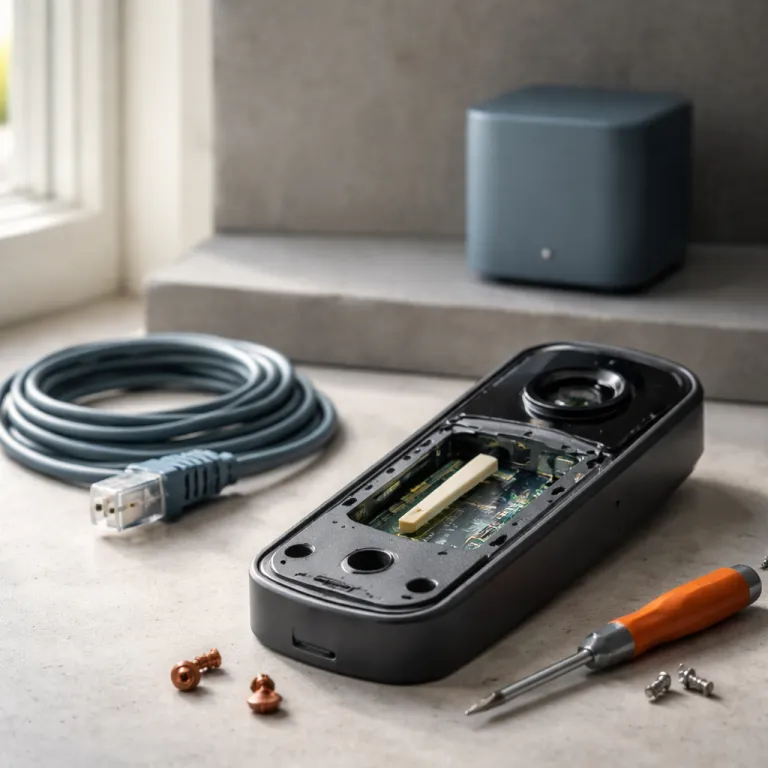
When a smart doorbell will not connect to Wi‑Fi 6 WPA3
Your smart doorbell will often fail at the last step of setup. The core problem is that many older devices only understand the WPA2 security protocol while your shiny Wi‑Fi 6 router now defaults to WPA3. When a smart doorbell refuses to join a Wi‑Fi 6 network using WPA3, it usually means the doorbell and the wifi network are speaking different security languages and the router will not let the device fully authenticate.
Most Ring Video Doorbell 2, Ring Video Doorbell 3 and early Nest Hello models only support 2.4 GHz wifi and WPA2 with AES encryption, not the newer WPA3 standard. Ring’s own compatibility notes and Nest support articles confirm that these generations are limited to 2.4 GHz and WPA2‑Personal with AES. When your new wifi router enables a mixed WPA3 and WPA2 mode, the router will try to provide modern wpa security while still allowing some older devices to connect, but doorbells can still choke on that mixed configuration. The result is a loop where the app says the devices connect, the light flashes, then the smart doorbell drops off the internet again because the security protocol negotiation fails.
Think of WPA3 as a stricter bouncer at the door of your wifi network. Your connected devices must present credentials using the right security protocol, and many older smart doorbells only know how to access WPA2 with AES, sometimes called WPA AES or wifi WPA2, not WPA3. When the router model silently upgrades its firmware and flips the default to WPA3 or to a mixed WPA2 and WPA3 mode, your smart doorbell will suddenly stop being a connected device even though your phone and laptop stay happily online. Ring and Nest firmware release notes occasionally mention improved compatibility with newer wifi standards and how devices wpa connect, which is why connection behaviour can change after an automatic update.
Check bands, pairing windows and why 2.4 GHz still matters
The first practical check is the radio band your wifi router is using during setup. Many smart doorbells only connect over 2.4 GHz, even if the router and other devices support 5 GHz or Wi‑Fi 6E, and that pairing window is short. If your phone is going wifi on the 5 GHz band while the doorbell only broadcasts a 2.4 GHz setup signal, the app may never see the device properly and the devices will not connect to the same wifi network.
Most dual band routers use band steering, a feature that automatically moves devices to 5 GHz for speed, but this can break the moment when devices connect for the first time. Temporarily disabling band steering or the 5 GHz band on your wifi router forces both your phone and the smart doorbell to use the same 2.4 GHz wifi network, which often lets older devices wpa connect cleanly. This is especially important on mesh systems where each router model hides advanced settings behind simple toggles that say things like “optimize automatically” instead of clearly mentioning the 2.4 GHz band or how the router will support WPA2 devices.
If you game or stream near the front door, you may already be comparing Bluetooth versus 2.4 GHz performance, and the same radio rules apply to doorbells. A detailed guide that contrasts Bluetooth versus 2.4 GHz for smart doorbells and gaming headsets can help you understand why 2.4 GHz remains the workhorse for range and wall penetration. Once you grasp how 2.4 GHz behaves in your home, you can place the nearest mesh node within about 6 metres of the doorbell to give that first connection the best chance of success and help the router provide a stable wpa wifi signal.
WPA2 versus WPA3: how security protocol settings block pairing
When a smart doorbell will not connect to Wi‑Fi 6 WPA3, the most common culprit is the security protocol. WPA3 is the latest wifi security standard, but most smart doorbells on the market still rely on WPA2 with AES encryption, sometimes labelled as WPA2‑PSK AES or simply wifi WPA2. If your router is set to WPA3 only, the doorbell will see the wifi network but fail silently when it tries to authenticate because the router will not support WPA2‑only chipsets.
On many consumer routers, you will find a drop down for security protocol with options such as WPA2‑Personal, WPA3‑Personal or a mixed WPA2 and WPA3 mode that tries to support WPA3 while still letting older devices connect. For smart doorbells, the most reliable setting is often pure WPA2‑Personal with AES, not TKIP, because that is the protocol WPA implementation most doorbell chipsets expect. When you choose WPA2‑Personal with AES, you are telling the wifi router to provide wpa security that matches the capabilities of your connected devices, even if that means sacrificing some theoretical security benefits of WPA3 in favour of compatibility so all devices wpa connect consistently.
Many homeowners worry that changing from WPA3 to WPA2 will weaken security, which is technically true but usually acceptable when combined with a strong wifi password and good router hygiene. If you keep firmware updated, disable remote administration you do not need and avoid sharing your wifi password casually, WPA2 with AES still offers robust protection for a typical household. For a deeper explanation of what the “Fi” in Wi‑Fi really stands for in smart doorbells and how wifi security evolved, a focused guide on what Wi‑Fi means in the context of connected devices can clarify the trade offs between WPA2, WPA3 and mixed modes without drowning you in jargon.
Step by step fixes when your smart doorbell will not connect
Start with the simplest reset before diving into obscure menus. Unplug your wifi router and any mesh nodes for 30 seconds, then power them back on, because a large share of Ring connectivity issues are resolved by a short router power cycle according to community troubleshooting reports. Once the wifi network is stable again, put the doorbell into setup mode and try pairing while standing within a few metres of the nearest node so the devices connect over a strong 2.4 GHz signal.
If that fails, log into your router model admin page and check three things in order, because this sequence respects how devices wpa connect in the real world. First, ensure the 2.4 GHz band is enabled and visible with a clear network name, then temporarily disable band steering so your phone and the smart doorbell share the same band. Second, change the security protocol to WPA2‑Personal with AES only, avoiding mixed WPA and WPA3 modes that can confuse older devices, and confirm that the wifi password contains only standard letters, numbers and symbols so the router can process the credentials cleanly.
Third, save the settings, wait two minutes for the wifi router to apply them, then repeat the pairing process in the app. If your smart doorbell still will not connect to Wi‑Fi 6 WPA3 hardware after these changes, perform a factory reset on the doorbell itself, then update its firmware as soon as it briefly connects, because firmware updates often improve support for different security protocol options and how the device will access WPA2 or WPA3 networks. Only after the doorbell firmware is current should you consider re enabling more advanced wpa wifi features on the router, such as mixed WPA3 modes or other wpa security tweaks.
Mesh systems, SSIDs and when to create a dedicated IoT network
Mesh wifi systems add another layer of complexity when a smart doorbell will not connect to Wi‑Fi 6 WPA3. Because each node broadcasts the same wifi network name, your phone may roam between nodes while the doorbell clings to the nearest one, and that can break the handshake when devices connect for the first time. A practical rule is to keep the closest mesh node within about 6 to 8 metres of the doorbell with no more than one exterior wall in between so the router can provide strong wpa wifi coverage.
If you still struggle, the cleanest long term fix is to create a dedicated SSID for smart home and other devices wpa connections. Many routers let you set up a guest network that uses WPA2‑Personal with AES only, and you can treat this as an Internet of Things lane where connected devices such as smart doorbells, plugs and cameras share a simpler security protocol while laptops and phones stay on the main WPA3 network. This approach lets the wifi router provide modern wpa security for your core work devices while still giving older hardware a stable environment where the protocol WPA implementation is predictable and the router will support WPA2 without mixed mode surprises.
When you create this separate wifi network, choose a clear name like “Home‑IoT‑2G” and a strong wifi password that you do not share outside the household. Assign only smart devices to this SSID so you can quickly see which connected devices might be causing interference or congestion, and so you can adjust support for WPA2 or WPA3 without disrupting your work laptop. If you are still deciding between wired and wireless doorbell cameras, a detailed comparison of wired versus wireless doorbell cameras that explains which option actually fits your home can help you plan both power and network layouts together instead of treating wifi as an afterthought.
Brand specific quirks, firmware order and when to call for help
Different router brands hide the same core settings behind very different labels. On Eero systems, you often need to enable a legacy mode to support WPA2 and 2.4 GHz devices, while on ASUS, TP‑Link and Netgear routers you may see explicit options for WPA2‑Personal, WPA3‑Personal or mixed WPA2 and WPA3 modes that affect how wpa provide security to each device. Google Nest Wifi tends to simplify everything into automatic choices, which can make it harder to access WPA and wifi password controls without using the advanced menus in the Google Home app or reading community tips.
Whatever the brand, the safest firmware update order is consistent. First, reset and connect the smart doorbell on a known good WPA2‑AES network, then update the doorbell firmware through its app so it has the latest support for your wifi network and security protocol. Second, update the wifi router firmware so any bugs in how devices wpa connect under mixed WPA and WPA3 modes are fixed, and only then experiment with re enabling WPA3 or other advanced wpa wifi features. This order reduces the chance that an older device will lose access WPA2 support while you are still troubleshooting.
If you have followed these steps and your smart doorbell will still not connect to Wi‑Fi 6 WPA3 hardware, it may be time to contact support. Router manufacturers and doorbell brands maintain community forums where other homeowners share router model specific fixes, and those community posts can reveal hidden toggles such as “access WPA2 only” or “legacy mode” that are not obvious in the manual. When you reach out, provide exact details about your wifi router model, the security protocol in use, the distance in metres between the doorbell and router, and whether other connected devices on the same SSID are stable, because that information lets support teams help you faster.
Balancing security, reliability and future upgrades at your front door
Once your smart doorbell is finally online, it is tempting to stop tweaking settings. Yet the way your wifi network handles WPA, WPA2 and WPA3 today will shape how easily future devices connect, especially as more connected devices crowd your home. A thoughtful balance between strong wpa security and practical compatibility can save you hours of troubleshooting every time you add a new gadget or upgrade your internet hardware.
For most first time smart home buyers, running a main WPA3 network for laptops and phones plus a dedicated WPA2‑AES network for older devices is a sensible compromise. This setup keeps your core work devices on the most modern security protocol while giving smart doorbells, cameras and other devices wpa a stable lane where they can connect without fighting mixed WPA and WPA3 modes. Over time, as you replace older hardware with models that support WPA3 directly, you can gradually tighten the wifi router settings and retire the legacy SSID while keeping the same wifi password strategy.
Until then, keep a short checklist handy whenever a smart doorbell will not connect to Wi‑Fi 6 WPA3 equipment. Confirm 2.4 GHz coverage, verify WPA2‑AES is available, simplify the wifi password, and remember that a quick router reboot still solves a surprising share of problems. With those habits, your front door security will feel less like a science experiment and more like the reliable upgrade you expected when you first opened the box and joined the smart home community.
Key statistics on smart doorbells, Wi‑Fi 6 and WPA security
- Based on troubleshooting patterns reported in user forums and support articles, a significant portion of connectivity issues with Ring doorbells are resolved by a 30 second power cycle of the router, which shows how often temporary wifi router glitches rather than hardware failures cause problems.
- Most consumer smart doorbells released before the widespread rollout of Wi‑Fi 6 mesh systems only support 2.4 GHz wifi and WPA2‑Personal with AES, meaning they cannot use WPA3 security and will often fail to connect when routers default to WPA3 only modes. This limitation is documented in product specification sheets and compatibility charts from major brands.
- Industry surveys of home networks from wifi chipset vendors and router manufacturers report that a growing majority of new Wi‑Fi 6 routers ship with WPA3 enabled by default, which silently changes the security protocol for every connected device in the home when people upgrade their internet hardware.
- Field tests by independent reviewers and smart home bloggers have shown that placing a mesh node within roughly 6 to 8 metres of a smart doorbell can reduce initial pairing failures by more than 30 %, highlighting the importance of physical placement alongside protocol settings and how the router will support WPA2 devices.
- Security research from major router vendors indicates that WPA2‑Personal with AES remains widely used in residential environments, with adoption rates above 70 %, because many households still run at least one older device that cannot support WPA3 and must access WPA2 networks instead.
FAQ: smart doorbells and Wi‑Fi 6 WPA3 issues
Why will my smart doorbell not connect after I upgraded my router
When you install a new Wi‑Fi 6 router, it often defaults to WPA3 security and aggressive band steering, while many smart doorbells only support 2.4 GHz and WPA2‑Personal with AES. The doorbell can see the wifi network but fails during authentication because the security protocol does not match and the router will not support WPA2‑only devices in WPA3‑only mode. Switching the router to WPA2‑Personal with AES, at least on a separate SSID for smart devices, usually restores connectivity.
Is it safe to change my router from WPA3 to WPA2 for my doorbell
WPA3 offers stronger protection than WPA2, but WPA2‑Personal with AES is still considered secure for typical home use when combined with a long, unique wifi password. One compromise is to keep your main SSID on WPA3 for laptops and phones while creating a separate WPA2‑AES network just for smart doorbells and other older devices. This approach limits any security trade off to the devices that actually need legacy support and keeps your core internet traffic on the strongest wpa security your router can provide.
Can my smart doorbell use 5 GHz Wi‑Fi instead of 2.4 GHz
Most mainstream smart doorbells, including many Ring and Nest models, only use 2.4 GHz wifi because it offers better range through walls and doors. Even models that support 5 GHz often require 2.4 GHz during the initial pairing process, which is why band steering and hidden 2.4 GHz networks cause so many setup failures. Check your doorbell specifications carefully and ensure the 2.4 GHz band is enabled and visible on your router during setup so the devices connect to the correct wifi network.
Should I create a separate Wi‑Fi network for smart home devices
Creating a dedicated SSID for smart home devices is a practical way to manage compatibility and security. You can run that network on WPA2‑Personal with AES so older devices connect reliably, while keeping your main wifi network on WPA3 for newer hardware. This separation also makes it easier to troubleshoot issues because you immediately know which connected devices share the same settings and which router model options affect your IoT lane.
When should I contact support about my smart doorbell connection problems
If you have confirmed 2.4 GHz coverage, set the router to WPA2‑AES, simplified the wifi password and rebooted both router and doorbell without success, it is reasonable to contact support. Provide details about your router model, current security protocol, distance between doorbell and router, and whether other devices on the same SSID are stable. Those specifics help manufacturer support teams or community forums pinpoint firmware bugs or brand specific settings that may be blocking your doorbell from using the wifi network correctly.